
What is COPTXT?
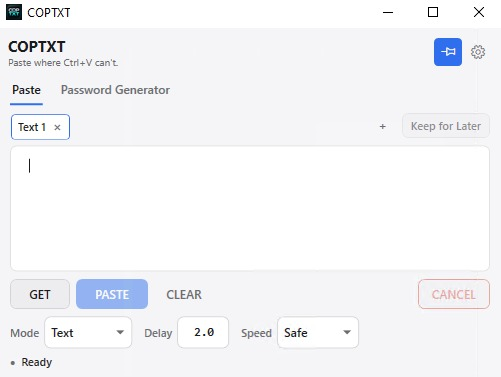
COPTXT gives Windows users another way to enter copied text. You explicitly load clipboard text into COPTXT, review or edit it, and then ask the app to reproduce that text in whichever destination window has keyboard focus.
The shipping application does not directly integrate with a console or inject clipboard data through a remote-control API. It sends the stored text as keyboard input, character by character, so a destination that accepts typing may still work even when its normal paste command does not.
Why does Ctrl+V sometimes not work?
Some remote consoles, virtual-machine viewers, browser-based terminals, legacy applications and restricted input fields do not expose ordinary Windows clipboard paste. Others accept keyboard input but ignore, intercept or handle Ctrl+V differently from a normal text field.
COPTXT addresses that practical gap by sending prepared text through the focused keyboard-input path. The destination still decides what to do with each keystroke; COPTXT does not execute commands, inspect the destination or establish a special connection to it.
How COPTXT works
- Copy the text you need in Windows.
- Open COPTXT and select GET to load the clipboard text into its editor.
- Review or edit the text, then choose Text or Commands mode, the start delay and a typing speed.
- Select PASTE and focus the destination application or console during the countdown.
- COPTXT types the stored text into the focused destination. Press Escape or select CANCEL to stop an operation.
An optional global Ctrl+Shift+V shortcut can be enabled in Settings. Once text has already been loaded into the active COPTXT tab, the shortcut starts the same paste workflow from anywhere without reopening or rereading the clipboard. It is disabled by default and may be unavailable if another application has already registered it.
Pasting text into VM and remote consoles
COPTXT can be useful when working with a virtual-machine console, a remote server console, a browser-based console, a KVM-style viewer or another window that accepts typing but does not offer dependable clipboard paste. You prepare the text locally, start the paste, and place focus inside the target before the countdown ends.
This is especially useful for configuration values, commands, scripts and other text that would be slow or error-prone to retype manually. Commands mode can send Enter at stored line breaks for line-at-a-time prompts; Text mode uses a soft Shift+Enter line break so multiline content is not deliberately submitted one line at a time.
Using COPTXT with Proxmox VE (PVE)
COPTXT can be useful with a Proxmox VE (PVE) VM or server console when the focused browser console accepts typed keystrokes but standard clipboard paste is unavailable. Load the text into COPTXT, start PASTE with a suitable delay, and focus the console.
COPTXT has no official Proxmox integration, partnership or platform-specific protocol. Results depend on the browser, the selected console viewer, the guest system and how that environment handles synthetic keyboard input, so the text should be checked before submitting or executing it.
Using COPTXT with VMware vSphere and ESXi consoles
When Ctrl+V or normal clipboard paste is unavailable in a VMware vSphere or ESXi virtual machine console, COPTXT may provide another way to enter prepared text if the console accepts keyboard input. This may apply to a browser-based console or VMware Remote Console (VMRC).
COPTXT does not integrate with VMware APIs or protocols and has no official VMware compatibility, certification, partnership or endorsement. Behavior depends on the console type, browser or VMRC, guest OS and the way keyboard input is handled.
Using COPTXT with Hyper-V VMConnect
Hyper-V provides native clipboard functionality in some configurations, particularly when Enhanced Session Mode is available. COPTXT may be useful when normal clipboard paste is unavailable but the VMConnect virtual machine console still accepts keyboard input.
COPTXT does not officially integrate with Microsoft or Hyper-V. Behavior depends on the VMConnect session, guest OS and the way the virtual machine console handles keyboard input.
Restricted fields and legacy applications
The same approach may help with older Windows applications or restricted fields that accept typing but do not implement the usual paste command. It cannot bypass a field that blocks input altogether or a Windows security boundary that prevents one process from sending input to another.
COPTXT features
Explicit clipboard import and editable text
GET reads the Windows clipboard only when you select it. The imported text can be reviewed or edited inside COPTXT, and later clipboard changes do not silently replace the active workspace.
Keyboard-based text delivery
PASTE sends the text in the active workspace to the window that has focus. Regular characters are sent as Unicode keyboard input, while tab characters are sent as Tab keypresses.
Text and Commands modes
Text mode sends stored newlines as Shift+Enter, which many targets treat as a soft line break. Commands mode sends Enter at each newline for shells, device command lines and other prompts where each stored line is intended to be submitted separately.
Adjustable delay and typing speed
A configurable countdown gives you time to focus the destination. Fast, Normal and Safe speed presets let you slow delivery for targets that cannot reliably keep up with rapid input.
Immediate cancellation
Escape is watched system-wide only while a paste is active, so it can stop further keystrokes even while another window has focus. The CANCEL button uses the same stop path, and status and progress information remain visible in COPTXT.
Multiple text workspaces
Numbered text tabs keep separate editable pieces of text in one COPTXT window. Tabs can be added, selected and closed, with confirmation before a non-empty workspace is discarded.
Always on top
The persistent on-top setting can keep COPTXT visible beside a console while you prepare and deliver text.
System tray options
COPTXT can start minimized and can hide in the Windows system tray when closed. The tray icon can reopen the existing window or exit the application completely.
Single-instance behavior
Starting COPTXT again does not leave duplicate utilities running. The later launch asks the existing instance to show its window, preserving the current in-memory workspaces.
Persistent appearance and workflow settings
Light, Dark and System themes are available. Delay, speed, paste mode, always-on-top, tray, startup, shortcut and password-generator preferences are saved locally for later launches.
Focused interface and fast startup
COPTXT opens into a compact Paste workspace with its primary controls visible. It is a focused utility designed to start quickly and stay out of the way rather than a general clipboard manager or remote-administration suite.
Keep for Later
Keep for Later preserves the current text in its numbered tab and opens a new empty workspace. This makes it possible to hold several prepared values or command blocks and return to each one without changing the Windows clipboard again.
Kept text is session-only. COPTXT does not save workspace contents to its settings file, so closing the application completely discards those tabs and their text.
Built-in Password Generator
The Password Generator creates a random password locally using a cryptographically secure generator. You can set its length, include or exclude uppercase letters, lowercase letters, numbers and symbols, and optionally remove commonly confused characters.
A generated password can be copied to the clipboard or typed directly into the focused destination using COPTXT's normal delay and speed settings. Generated values remain in memory for the session and are not stored in the settings file. This feature is a generator, not a password manager, vault or secrets manager.
Privacy and practical limitations
- COPTXT's normal text-entry workflow is local and does not send stored text to a COPTXT server.
- PASTE and password TYPE target whichever window has keyboard focus when delivery begins.
- A normally running COPTXT process cannot type into a higher-privilege elevated window because Windows blocks that input.
- Secure Desktop surfaces such as a UAC consent prompt cannot receive COPTXT input.
- Console behavior varies; Text mode's Shift+Enter and Commands mode's Enter should be chosen with the destination in mind.
- COPTXT does not parse, validate or execute the text. The destination determines what typed input does.
For details about local text handling, analytics and support communications, read the Privacy Policy.
Built for Windows
COPTXT is a 64-bit desktop utility for Windows 10 and Windows 11. The current project does not claim support for Windows on ARM, older Windows releases or Windows Server editions.
Who is COPTXT for?
COPTXT is intended for people who regularly move text into environments with limited clipboard support: system administrators, IT professionals, developers, homelab users, people working with virtual machines, and anyone using remote or browser-based consoles. It is also useful when a focused legacy application accepts typing but not standard paste.
Frequently asked questions
What is COPTXT?
COPTXT is a Windows utility that loads text you choose and sends it as keyboard input to a focused application or console.
How do I paste text when Ctrl+V doesn't work?
Load the copied text with GET, select PASTE, and focus the destination during the countdown. COPTXT then types the stored text instead of issuing the destination's normal paste command.
How can I paste text into a virtual-machine console?
Prepare the text in COPTXT, start PASTE, and focus the VM console. This can help when the console accepts typing but does not support ordinary clipboard paste.
Can COPTXT help with remote consoles?
Yes, when the focused remote-console viewer forwards typed keyboard input. COPTXT does not directly connect to or integrate with the remote system.
Can COPTXT be used with Proxmox VE?
It can be useful with a Proxmox VE console that accepts typed input while Ctrl+V is unavailable. There is no official Proxmox integration, and behavior depends on the browser and console configuration.
Can COPTXT be used with VMware vSphere or ESXi consoles?
It may help when a VMware vSphere, ESXi or VMRC console accepts keyboard input but Ctrl+V or clipboard paste is unavailable. COPTXT has no official VMware integration, and behavior depends on the console and guest configuration.
Can COPTXT be used with Hyper-V VMConnect?
It may help when VMConnect accepts keyboard input but clipboard paste is unavailable. Enhanced Session Mode may already provide native clipboard support in some Hyper-V configurations; COPTXT has no official Microsoft or Hyper-V integration.
What is the COPTXT keyboard shortcut?
The optional global shortcut is Ctrl+Shift+V. It is off by default; enable it in Settings after loading text into the active tab, then use it to start the paste workflow from anywhere.
Does COPTXT replace the Windows clipboard?
No. GET explicitly reads clipboard text into COPTXT. The shipping PASTE workflow types from COPTXT's own active workspace rather than replacing the clipboard.
Is COPTXT free?
Yes. The current version of COPTXT is free to download and use.
Does COPTXT send the text I paste to a server?
No. The current application's normal text-entry features process stored text locally and do not send it to a COPTXT server.
Is the Password Generator a password manager?
No. It generates a password locally for the current session; it does not provide a vault, accounts, saved credentials or cloud synchronization.